LAS TFMC simulator setup

Using LAS TFMC with ProSim

ProSim does not require a separate LAS plugin or connector. LAS TFMC communicates directly with the Generic TCP Driver built into the ProSimCDU application.

1. Configure ProSimCDU

Start ProSimCDU, then right-click anywhere in the CDU display area and select Config.

In the configuration window, select the required CDU role and enable FANS if required. Then open the Drivers tab and scroll all the way down to Generic TCP Driver.

Enter 8099 for the TCP port. You can use another port number above 8000 if required, but the same port must also be entered in the LAS TFMC configuration.
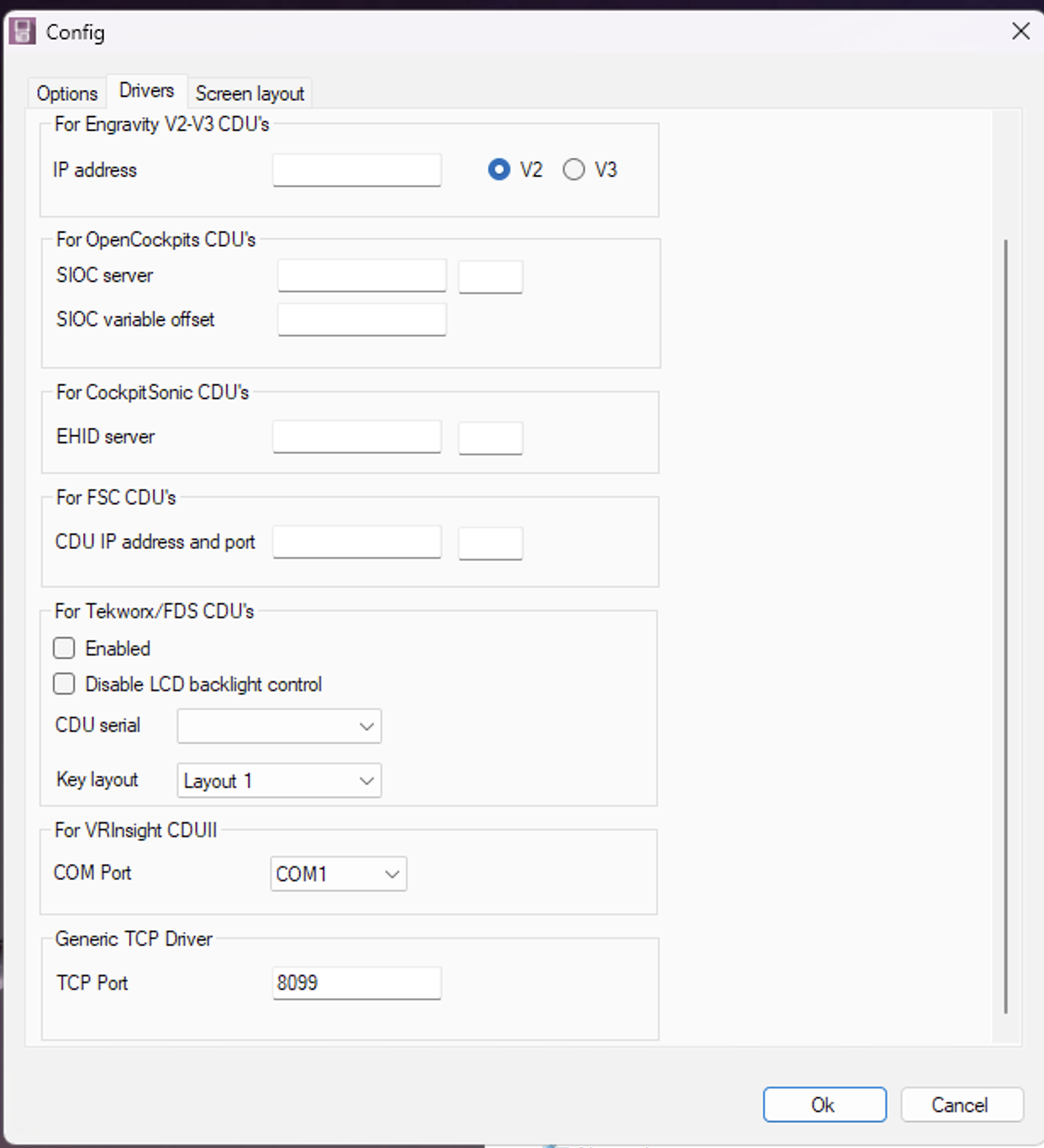
ProSimCDU Drivers configuration showing Generic TCP Driver port 8099
ProSimCDU Drivers tab with the Generic TCP Driver set to port 8099.

2. Configure LAS TFMC

Open the TFMC configuration page and select ProSim under Simulator.

Enter:

  • the IP address of the computer running ProSim; and
  • the same TCP port configured in ProSimCDU — normally 8099.

The port configured in ProSimCDU and the port configured in LAS TFMC must match.

3. Allow the port through Windows Firewall

The selected TCP port must be allowed through Windows Firewall on the computer running ProSim so LAS TFMC can connect to ProSimCDU.

For the default port of 8099, open PowerShell as Administrator and run:

New-NetFirewallRule `
  -DisplayName "LAS TFMC ProSim" `
  -Direction Inbound `
  -Protocol TCP `
  -LocalPort 8099 `
  -Profile Private `
  -Action Allow

If you selected a different port in ProSimCDU, replace 8099 with that port number.

Once ProSimCDU, LAS TFMC and Windows Firewall are configured with the same port, no additional LAS software is required.